Majestic Win Login Problems: Account Access and Verification Errors
Majestic Win Login Problems: Account Access and Verification Errors
Login issues can stop you from placing bets or checking your balance on Majestic Win. Most errors—wrong password, locked accounts, or verification prompts—can be fixed in a few minutes on your phone.
This guide covers the most common Majestic Win login problems and how to resolve them, whether you're using the Android app, iOS web app, or mobile browser.
Common Login Errors: Wrong Password, Account Locked, Verification Required
When you try to log in to Majestic Win, you may see one of these messages:
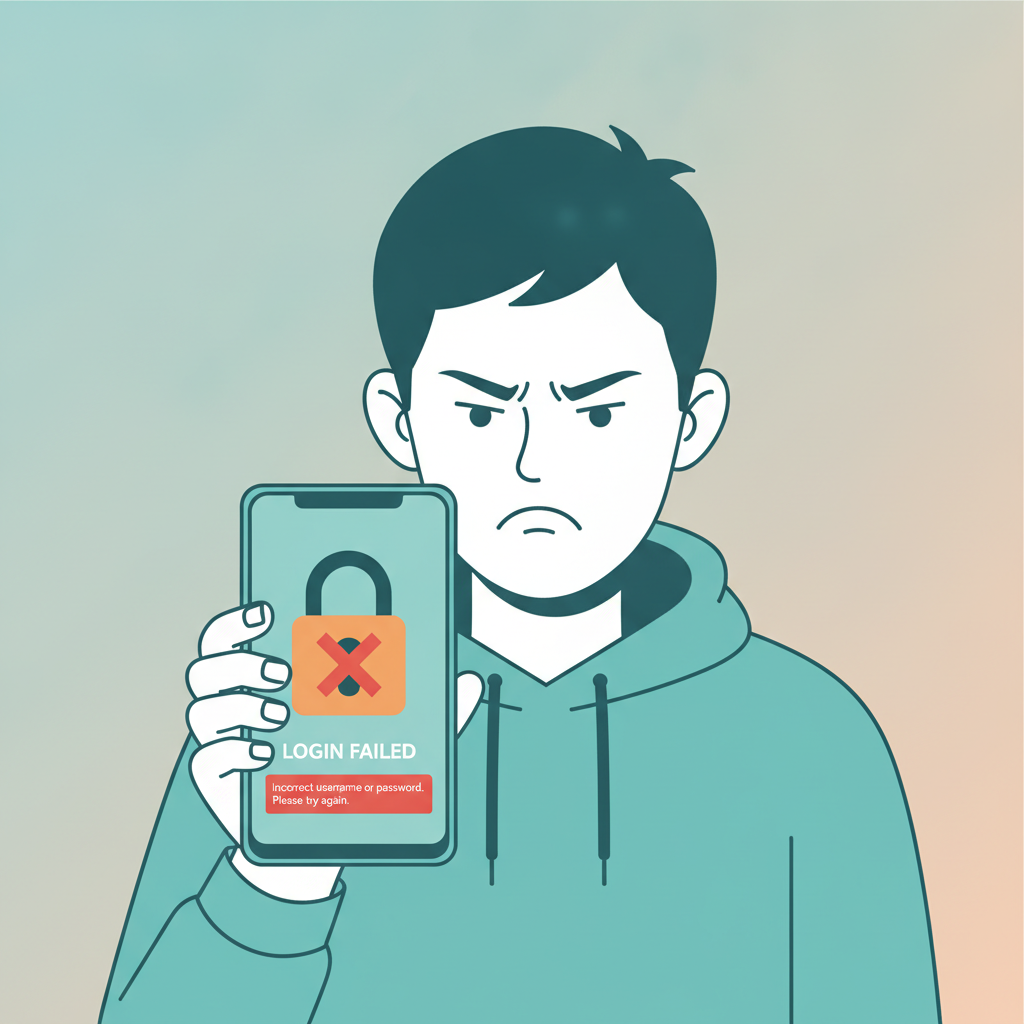
"Incorrect username or password"
You've entered the wrong login details. Double-check your registered mobile number or email and password. Make sure auto-correct hasn't changed your password, and check that Caps Lock is off.
"Account temporarily locked"
After three to five failed login attempts, Majestic Win may lock your account for 15–30 minutes to protect it. Wait, then try again. If the lock persists for hours, contact customer support through live chat or Telegram.
"Verification required" or "Account under review"
Majestic Win may ask you to verify your identity before you can log in again. This usually happens if:
- You're logging in from a new device or IP address
- You've requested a withdrawal and haven't submitted ID documents yet
- The platform detected unusual activity or multiple login attempts from different locations
You'll need to upload a photo of your valid government ID (passport, driver's license, or PhilID) and sometimes a selfie holding the ID. Instructions are usually sent to your registered email or shown in the app.
"Session expired"
If you've been inactive for a while, your session times out. Simply enter your credentials again. This is a security feature, not an error.
How to Reset Your Majestic Win Password on Mobile
If you've forgotten your password or suspect someone else knows it, reset it through the app or mobile browser:
- Open the Majestic Win app or website on your Android phone or iPhone.
- Tap "Login" then look for "Forgot Password?" or "Reset Password" below the login fields.
- Enter your registered mobile number or email address. Use the same contact details you provided during registration.
- Tap "Send Code" or "Submit." Majestic Win will send a one-time password (OTP) or reset link via SMS or email. Check your inbox and spam folder.
- Enter the OTP in the app, or tap the link in the email. You'll be taken to a page to create a new password.
- Choose a strong password: at least 8 characters, mixing uppercase and lowercase letters, numbers, and symbols. Avoid using "12345678" or your birthdate.
- Confirm your new password and tap "Submit" or "Save."
- Log in immediately with your new password to make sure it works.
If you don't receive the OTP or reset email within five minutes, check that your registered mobile number or email is correct. Contact Majestic Win support via live chat if the reset link never arrives.
Tip: Save your new password in your phone's password manager (Google Password Manager on Android, iCloud Keychain on iPhone) so you don't lose it again.
What to Do If Your Account Is Suspended or Needs ID Verification
If you see "Account suspended" or "Verification pending," Majestic Win has flagged your account. This is not always a ban—it's often a routine compliance check.
Why accounts get suspended
- Incomplete or mismatched information: The name on your account doesn't match your bank or GCash account.
- Duplicate accounts: Majestic Win allows only one account per person. Creating a second account violates terms of service.
- Failed verification: You didn't upload valid ID documents when requested.
- Suspicious activity: Large or rapid withdrawals, logging in from many locations, or bonus abuse can trigger a manual review.
How to verify your account and lift the suspension
- Check your registered email for a message from Majestic Win. It will list the documents needed.
- Prepare a clear photo of your government-issued ID: front and back if it's a plastic card, the main page if it's a passport. Make sure text and your photo are readable.
- Take a selfie holding your ID next to your face if requested. Write the current date and "For Majestic Win" on a piece of paper and hold it in the photo if instructed.
- Log in to the Majestic Win app or website. Look for a "Verify Account" or "Upload Documents" button, usually in the account or profile section.
- Upload your ID photo and selfie. Follow the on-screen prompts. JPG, JPEG, or PNG files under 5 MB work best.
- Wait for review. Verification usually takes 24–48 hours on weekdays. You'll receive an email or SMS when your account is approved.
If 72 hours pass with no update, message Majestic Win support. Provide your registered mobile number or email, and ask for a status update.
Important: Never share photos of your ID on public forums or social media. Only upload documents through the official Majestic Win app or website.
Clearing App Cache and Cookies to Fix Login Issues
Sometimes login problems are caused by corrupted cache files or outdated cookies stored on your phone. Clearing them can fix:
- Blank or frozen login screens
- "Session expired" loops
- Buttons that don't respond when you tap "Login"
On Android (Majestic Win APK app)
- Go to Settings > Apps (or "Applications" on some phones).
- Find "Majestic Win" in the list and tap it.
- Tap "Storage" or "Storage & cache."
- Tap "Clear Cache." This removes temporary files but keeps your login details saved.
- If that doesn't work, tap "Clear Data" (or "Clear Storage"). This will log you out and reset the app completely. You'll need to enter your username and password again.
- Reopen the Majestic Win app and try logging in.
On iPhone (mobile browser or web app)
Because Majestic Win doesn't have a native iOS app on the App Store, iPhone users access the platform through Safari or Chrome.
In Safari:
- Open Settings > Safari.
- Scroll down and tap "Clear History and Website Data."
- Confirm. This clears cookies and cache for all websites, not just Majestic Win.
- Reopen Safari, go to the Majestic Win website, and log in again.
In Chrome:
- Open the Chrome app > tap the three dots (⋮) in the bottom-right corner.
- Tap "History" > "Clear Browsing Data."
- Choose "Cookies, Site Data" and "Cached Images and Files." Set time range to "All time."
- Tap "Clear Browsing Data."
- Go back to the Majestic Win site and try logging in.
Other quick fixes
- Restart your phone. This clears temporary system glitches.
- Check your internet connection. Switch between Wi-Fi and mobile data to see if one works better.
- Update the Majestic Win app. If you're using the Android APK, download the latest version from the official Majestic Win website.
- Try a different browser. If Safari won't load the login page, try Chrome or Firefox.
If none of these steps work, uninstall the Majestic Win app completely, restart your phone, then reinstall it from the official download link.
When to Contact Majestic Win Support
If you've tried resetting your password, clearing cache, and waiting for account verification—and still can't log in—reach out to Majestic Win customer support.
Contact methods:
- Live chat: Available 24/7 on the Majestic Win website. Tap the chat icon in the bottom-right corner.
- Telegram or Viber: Some players report faster replies via Majestic Win's official messaging channels. Check the "Contact Us" page for links.
- Email: Support email addresses are listed on the site. Include your registered mobile number, username, and a brief description of the problem.
What to include in your message:
- Your registered mobile number or email
- A screenshot of the error message (if any)
- The device and browser or app version you're using
- Steps you've already tried (password reset, cache clearing, etc.)
Most login issues are resolved within 24 hours once support reviews your case.
21+ Only and Responsible Gambling Reminder
Majestic Win is intended for players aged 21 and older. If you find yourself logging in more often than planned, chasing losses, or feeling anxious about your balance, take a break. Majestic Win offers self-exclusion and deposit limit tools in the account settings.
For confidential help with problem gambling in the Philippines, contact the National Center for Mental Health or reach out to a trusted counselor. Gambling should be entertainment, not a way to solve financial problems.
Bottom line: Most Majestic Win login problems—wrong passwords, locked accounts, or verification requests—can be fixed on your phone in under ten minutes. Reset your password through the app, clear your cache, and upload a valid ID if asked. If you're still stuck, contact support with your registered details and a screenshot of the error.