Majestic Win App Download: Android APK Install Guide
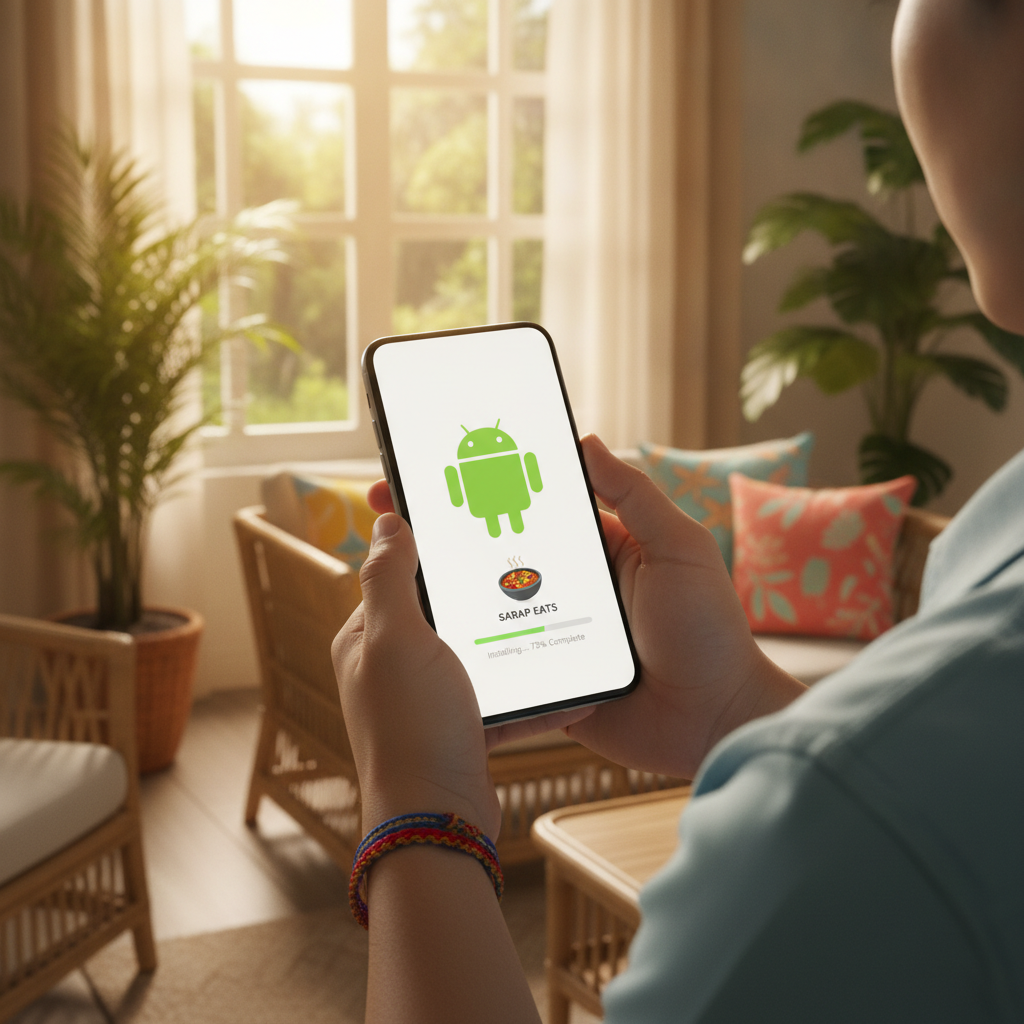
Majestic Win App Download: Android APK Install Guide
Many Filipino players prefer using the Majestic Win mobile app instead of the browser version for slots, live casino, and sports betting. The dedicated Android app offers faster loading times and a smoother experience on your phone. This guide walks you through downloading the official Majestic Win APK file, installing it on your Android device, keeping it updated, and troubleshooting common installation errors.
21+ only. Majestic Win is for adult players aged 21 and over. Set deposit limits and take breaks if gambling stops being fun.
Where to Find the Official Majestic Win Android APK
Majestic Win does not distribute its Android app through the Google Play Store. Philippine-facing casino and sportsbook apps are typically unavailable on Play Store, so operators provide a downloadable APK file directly from their official website.
To download the Majestic Win app safely:
- Open your phone's browser (Chrome, Firefox, or your default browser) and visit the official Majestic Win website.
- Look for the mobile app section on the homepage. This is usually displayed as a banner near the top or a dedicated "Download App" button in the site menu.
- Tap the Android download button. The site will begin downloading the APK file (usually named something like "MajesticWin.apk" and sized between 50–100 MB depending on the version).
- Do not download from third-party sites. Only use the link provided on the official Majestic Win domain to avoid fake or tampered APK files that could compromise your login credentials or payment details.
The download may take one to three minutes depending on your connection speed. Once the file finishes downloading, you'll see a notification in your phone's download tray.
Step-by-Step Android APK Installation Instructions
Because the Majestic Win APK is not from the Play Store, you need to allow your phone to install apps from unknown sources. Here's how to do it safely:
Enable Installation from Unknown Sources
- Open your phone's Settings app.
- Navigate to Security or Privacy (the exact menu name varies by phone brand—Samsung, Xiaomi, Oppo, and Realme all label it slightly differently).
- Find the option labeled "Install unknown apps" or "Unknown sources."
- Tap your browser name (for example, Chrome or Firefox) in the list of apps.
- Toggle on "Allow from this source."
This permission lets your browser install the APK you just downloaded. You can turn it off again after installation if you prefer.
Install the Majestic Win APK
- Open your Downloads folder or tap the download notification.
- Tap the Majestic Win APK file. A prompt will appear asking if you want to install the app.
- Tap "Install" and wait 10–20 seconds while Android unpacks and installs the app.
- Tap "Open" once installation completes, or find the Majestic Win icon on your home screen or app drawer.
When you launch the app for the first time, log in with the same username and password you use on the Majestic Win website. Your account balance, bet history, and favorites will sync automatically.
Security Settings After Installation
After you've installed the app, consider turning off the "Install unknown apps" permission for your browser to prevent accidental installation of other APK files in the future. You can always re-enable it when you need to update the Majestic Win app.
How to Update the Majestic Win App
Unlike Play Store apps that update automatically, APK-based apps require manual updates. Majestic Win releases new app versions every few weeks to add features, improve performance, or fix bugs.
Checking for App Updates
- Log in to the Majestic Win app. If a new version is available, a pop-up notification usually appears on the home screen prompting you to update.
- Tap "Update Now" or "Download Latest Version." This redirects you to the download page on the Majestic Win website.
- Download the new APK file just like you did the first time.
Alternatively, you can visit the Majestic Win website in your browser every couple of weeks and check the app download section to see if a newer version number is listed.
Installing the Update
- Tap the newly downloaded APK file from your Downloads folder or notification.
- Tap "Install" (or "Update" if the prompt recognizes an existing version).
- The update installs over your current app without deleting your login details or app settings.
You do not need to uninstall the old version first. Installing the new APK will automatically replace it. Your account data, including your GCash or Maya wallet links, remains intact.
Why Updates Matter
Newer app versions often include:
- Faster deposit and withdrawal processing through GCash and Maya
- Bug fixes for login errors or frozen game screens
- New game releases that may not display correctly on older app versions
- Security patches to protect your account and payment information
If you experience lag, crashes, or see a message saying "Please update to continue," installing the latest APK usually resolves the issue.
Fixing 'App Not Installed' or Compatibility Errors
Occasionally, Android will refuse to install the Majestic Win APK and display an error message. Here's how to troubleshoot the most common problems:
"App Not Installed" Error
This error typically appears for one of three reasons:
- Corrupted download. If your internet connection dropped while downloading the APK, the file may be incomplete. Delete the file from your Downloads folder and download it again from the Majestic Win website.
- Insufficient storage space. The Majestic Win app needs at least 200–300 MB of free space to install (the APK itself plus cache and data). Check your phone's storage in Settings > Storage and clear old photos, videos, or unused apps if needed.
- Conflicting app signature. If you previously installed a Majestic Win APK from an unofficial source, the new official version may have a different digital signature. Uninstall the old app completely (you can log back in after reinstalling), then try installing the official APK again.
"Package Appears to Be Corrupt" Message
This usually means the APK file was modified or didn't download fully. Delete the file and redownload it, making sure your Wi-Fi or mobile data connection is stable.
"This App Is Not Compatible with Your Device"
The Majestic Win Android app requires Android 5.0 (Lollipop) or higher. If your phone runs an older version of Android, you won't be able to install the app. Check your Android version in Settings > About Phone > Android Version.
If your phone meets the minimum requirement but you still see this error:
- Restart your phone and try the installation again.
- Clear your browser cache (Settings > Apps > [Your Browser] > Storage > Clear Cache) and redownload the APK.
- Use a different browser to download the file—sometimes Chrome works when Firefox doesn't, or vice versa.
"Installation Blocked" by Google Play Protect
Google Play Protect sometimes flags sideloaded APK files as potentially harmful, even if they're safe. If you see a warning:
- Tap "More details" or "Install anyway."
- Confirm you trust the source (the official Majestic Win website).
- Proceed with installation.
Play Protect warnings are common for gambling and betting apps because Google doesn't allow them in the Play Store. As long as you downloaded the APK from the legitimate Majestic Win site, it's safe to install.
Tips for Smooth App Performance
Once you've installed the Majestic Win app, keep these best practices in mind:
- Close other apps before launching Majestic Win, especially if you're on a phone with 2 GB RAM or less. This frees up memory and prevents lag during live dealer games or in-play sports betting.
- Connect to Wi-Fi when placing bets or making GCash or Maya deposits to avoid mobile data interruptions.
- Update your Android operating system when your phone manufacturer releases patches. Newer Android versions improve app stability and security.
- Check app permissions. The Majestic Win app may request access to storage (for downloading game assets) and notifications (for bet confirmations and promo alerts). You can manage these in Settings > Apps > Majestic Win > Permissions.
If the app freezes or crashes frequently even after updating, try clearing the app cache: go to Settings > Apps > Majestic Win > Storage > Clear Cache. This won't delete your login credentials but will remove temporary files that sometimes cause glitches.
Responsible Gambling Reminder
Majestic Win is intended for players 21 years of age and older. Treat casino games and sports betting as entertainment, not a way to make money. Set a budget before you start, use GCash or Maya deposit limits if available, and take breaks when you need to. If gambling becomes stressful or you're chasing losses, reach out to a responsible gambling helpline or use Majestic Win's self-exclusion tools.
Summary: Download the official Majestic Win Android APK from the operator's website, enable installation from unknown sources in your phone's security settings, and install the file. Update the app manually whenever a new version is released by downloading the latest APK. If you encounter "App not installed" or compatibility errors, check your storage space, Android version, and internet connection, or clear your browser cache and try again. Keep the app updated for the best performance when depositing via GCash or Maya and playing slots, live casino, or sports betting on your Android phone.